
What would you put on a screen that sits beside your keyboard all day, and who besides you should be allowed to write to it? I asked myself that question when I had an old mini PC and a spare monitor doing nothing on my desk. I wanted the time in the cities I work with, the short list of things I promised to finish today, and a running line of what my scripts and AI assistants had done while I was heads down. So I built Deskboard, and it’s open source under the MIT license at https://github.com/discoposse/deskboard for anyone who wants the same thing.
Deskboard is a self-hosted desk dashboard for a spare mini PC and a monitor. It runs fullscreen in a kiosk browser, draws a tile grid that always fits the screen, and lets you edit the layout from another machine on your private network. The server is plain Python with only the standard library, and the page is plain HTML, CSS and JavaScript with the fonts shipped in the repo, so there is no build step.

What Hardware and Software Do You Need?
You need a spare mini PC (an older NUC is what I had in mind), a monitor on HDMI or something similar, and a network you trust. The grid stays inside the screen at every size from 1024×600 up to 4K, and portrait monitors work too.
For software, the server needs Python 3.10 or newer, and any OS can run it for a quick test. The kiosk path in the repo targets Ubuntu 24.04 (other recent Ubuntu releases are usually fine), with a non-root user who owns the checkout. You also want Tailscale if you plan to edit the board from your laptop, and I’ll get to why in the security section.
Can You Try It Before You Commit a Machine?
You can run the whole thing on your laptop first with four commands. Clone the repo, copy the example config, and start the server.
git clone https://github.com/discoposse/deskboard
cd deskboard
cp config.example.json config.json
python3 serve.py
Open the board at http://127.0.0.1:8730 and the configurator at http://127.0.0.1:8730/?config in a second tab. Then load the sample layout that ships in examples/.
curl -s http://127.0.0.1:8730/api/widgets/import \
  -X PUT -H 'Content-Type: application/json' \
  --data-binary @examples/demo-board.json
How Do You Install It as a Fullscreen Kiosk?
The kiosk install takes over the local console on tty1 with Cage and a fullscreen WebKitGTK window. SSH stays untouched, so you can still manage the box remotely after the monitor belongs to Deskboard.
Start by copying the repo to the mini PC, for example into ~/deskboard. Then copy config.example.json to config.json, set timezone for the clock display, and set mark to the short label you want on the board (the example file uses DESK). The same file holds bind_tailscale, which you turn on if you want to edit the board over Tailscale.
git clone https://github.com/discoposse/deskboard ~/deskboard
cd ~/deskboard
cp config.example.json config.json
# edit timezone, mark and bind_tailscale in config.json
Next, run the installer as root with your desk user set.
sudo DESKBOARD_USER="$USER" ./install.sh
The installer pulls in cage, python3-gi, gir1.2-gtk-3.0, gir1.2-webkit2-4.1 and rsync, and adds your user to the video, render and input groups. It writes two systemd units, deskboard for the page and API and deskboard-kiosk for the screen, then enables and starts both. It also sets the logind idle action to ignore, so the machine doesn’t suspend when nobody touches the keyboard for a while.
When the install finishes, the script checks /api/status and prints the commands you’ll use most often.
sudo systemctl stop deskboard-kiosk
sudo systemctl start deskboard-kiosk
journalctl -u deskboard-kiosk -u deskboard -f
Two habits from the install doc save me trouble on the kiosk machine. Leave the OS timezone alone and set timezone in config.json, since that value only drives the clock display. And skip the reboot when you are testing a content or CSS change, because the board refreshes on its own every 5 seconds or so.
How Does the Drag and Drop Configurator Work?
The configurator lives at /?config on the same port, and you open it from any machine that can reach the board. Every edit goes to the board through the same API you can call with curl, so anything you click you can also script.
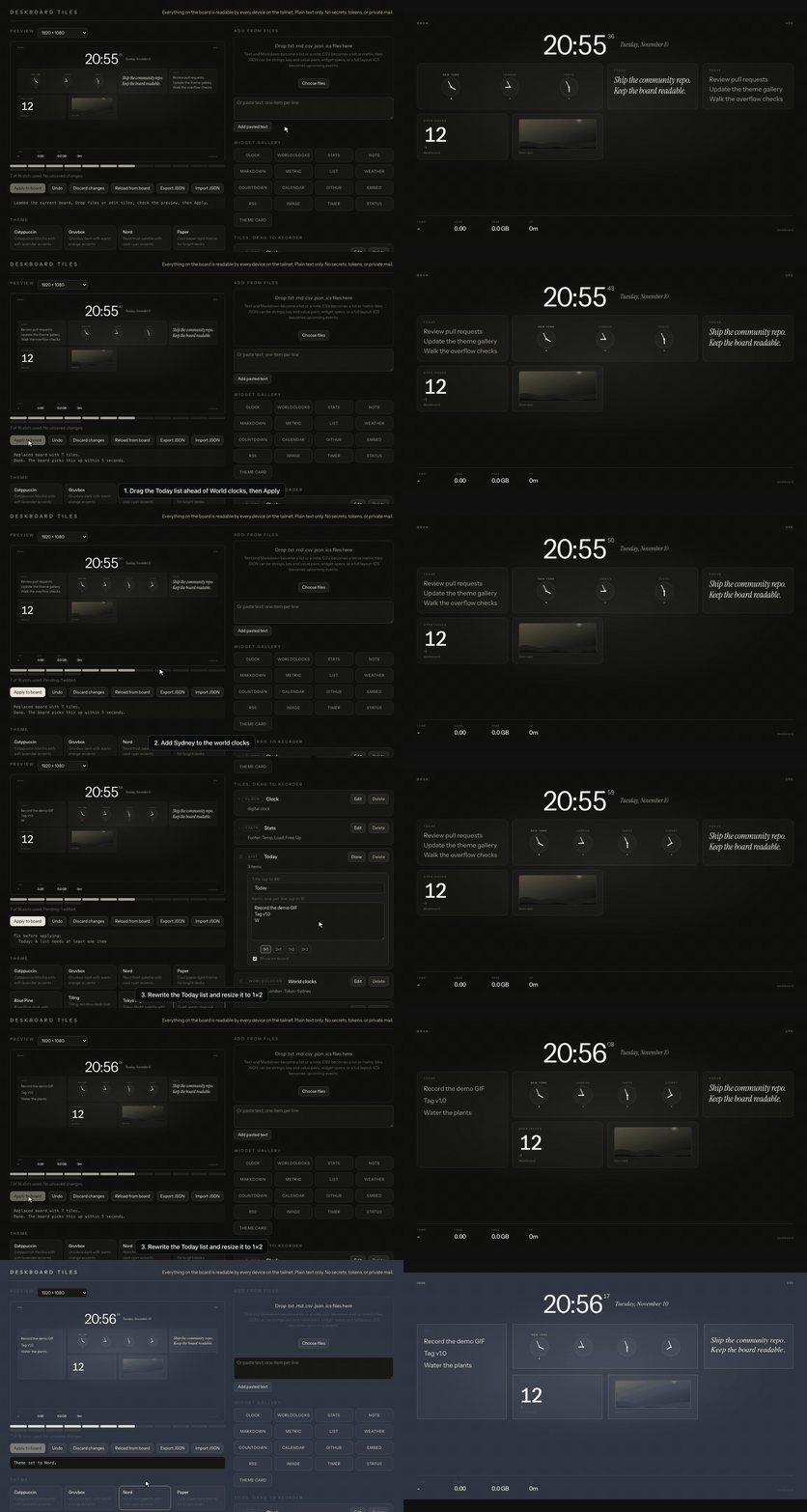
You drag tiles to reorder them, and the clock and stats tiles always stay first. Each tile has span buttons, so you can make a tile cover two columns or two rows. Tile edits stay pending until you press Apply to board, which sends the whole layout in one request, and Undo steps back through your recent changes.
The Add from files area is my favorite part of the configurator. You drop a .txt, .md, .csv, .json or .ics file on it, and Deskboard turns it into tiles. Text and Markdown become a list or a note, CSV becomes a list or metric tiles, JSON can hold a full layout, and an ICS file becomes upcoming events. You can also paste text with one item per line, and Export JSON and Import JSON let you keep a copy of a layout you like.
Picking a theme in the configurator saves right away with no Apply step, so you can flip through all eight and see each one on the monitor.
Which Widgets Can You Put on the Board?
Deskboard holds up to 16 tiles by default (max_widgets in the config), and a few types are singletons. The tiles I use most are these.
- The
clocktile shows a large digital or analog desk clock, with optional seconds and date. - The
worldclockstile shows a row of cities by IANA zone, andmark_marketslights up common market hours. - The
githubtile tracks public repos asowner/name, with stars, day and week change, and a sparkline. - The
embedtile frames an HTTPS page from a host you list inembed_allowlist, and it shows a fallback card when a site blocks framing. - The
listtile holds 1 to 8 short lines, which suits a daily list or a bot status feed. - The
statstile shows temperature, load, free memory and uptime along the footer.
There are also tiles for notes, Markdown, metrics, weather from Open-Meteo, countdowns, ICS calendars, RSS headlines, images, pomodoro timers, URL status checks and theme art cards. Adding a world clock city from the command line looks like this, and you send the full city list each time.
curl -s http://127.0.0.1:8730/api/widgets/world \
  -X PATCH -H 'Content-Type: application/json' \
  -d '{"cities":[
        {"label":"New York","zone":"America/New_York"},
        {"label":"London","zone":"Europe/London"},
        {"label":"Tokyo","zone":"Asia/Tokyo"},
        {"label":"Sydney","zone":"Australia/Sydney"}]}'
GitHub tiles run without a token against the public rate limits. If you want a token, put it in a systemd drop-in at /etc/systemd/system/deskboard.service.d/token.conf and never in widget JSON.
[Service]
Environment=DESKBOARD_GITHUB_TOKEN=ghp_example
Then run sudo systemctl daemon-reload && sudo systemctl restart deskboard so the service starts with the token in its environment.
Eight themes ship with the repo, with warm dark as the default plus Tokyo Night, Catppuccin, Gruvbox, Nord, Rose Pine, Tiling and Paper. I run Tiling most days because the crisp borders and mono display font suit a screen full of status lines.

You can switch themes from the configurator or with one call.
curl -s http://127.0.0.1:8730/api/config \
  -X PATCH -H 'Content-Type: application/json' \
  -d '{"theme":"nord"}'
How Do Your Bots and Scripts Post Status to the Board?
The feature I wanted most was a tile my assistants could write to without stepping on my layout. Deskboard handles that with managed tiles, where a list tile carries managed_by and the configurator shows its content as read-only while still letting you move, resize or hide it. The sample layout has no bot tile, so create one first.
curl -sS http://127.0.0.1:8730/api/widgets \
  -H 'Content-Type: application/json' \
  -d '{"type":"list","id":"botstatus","title":"Bots","items":["Waiting"],"managed_by":"bots"}'
Any script then adds a line with one POST, or with the scripts/post.sh wrapper in the repo.
curl -sS -X POST http://127.0.0.1:8730/api/widgets/botstatus/post \
  -H 'Content-Type: application/json' \
  -d '{"source": "Backup", "text": "Nightly backup finished"}'

scripts/post.sh botstatus Backup "Nightly backup finished"
The line shows up as 9:05 PM Backup Nightly backup finished in the board’s timezone, at the top of the tile. The tile keeps its newest max_items lines (1 to 8, default 6) and cuts each line at 80 characters. A missing or hidden tile returns 404, and the post route never creates a tile, so a tile you hid stays hidden. When a bot posts while you have the configurator open, your Apply keeps the bot’s lines because the configurator sends keep_managed and the server checks revisions before it writes.
For assistants that speak the Model Context Protocol, the repo includes an MCP server at mcp/deskboard_mcp.py. It runs over stdio with the Python standard library (Python 3.9 or newer), and it has four tools, post_status, list_tiles, read_tile and board_status. The MCP server has no tool that creates, deletes, moves, resizes or themes a tile, and it posts only to enabled list tiles marked "managed_by": "bots". For Cursor, the block goes in ~/.cursor/mcp.json.
{
  "mcpServers": {
    "deskboard": {
      "command": "python3",
      "args": ["/home/you/apps/deskboard/mcp/deskboard_mcp.py"],
      "env": {
        "DESKBOARD_URL": "http://deskboard.your-tailnet.ts.net:8730",
        "DESKBOARD_SOURCE": "Cursor"
      }
    }
  }
}
Claude Desktop takes the same block in claude_desktop_config.json, and docs/bots.md has a prompt you can paste into any assistant with the posting rules spelled out.
How Should You Keep the Board Private?
Deskboard has no login, so anything on the board is readable by every device that can reach the port. Reachability is the boundary, and the defaults are set with that in mind. The server binds loopback by default, sends no CORS headers, and refuses 0.0.0.0 as a bind address.
To edit from your laptop, set bind_tailscale to true in config.json, restart the deskboard service, and reach the board on your tailnet at an address like http://deskboard.your-tailnet.ts.net:8730. Keep the port off the open internet, and don’t put a public Tailscale Funnel or a public proxy in front of it. Treat the board like a shared whiteboard, with no secrets, tokens, codes or private mail in any tile, and tell your bots the same thing.
How Do You Update Deskboard?
Your config.json and widgets.json are local state that git ignores, so pulling new code leaves your settings and layout alone. On the kiosk machine, pull and restart the service that matches what changed.
cd ~/deskboard
git pull
sudo systemctl restart deskboard
sudo systemctl restart deskboard-kiosk
Python changes need the deskboard restart, and frontend or kiosk changes need the deskboard-kiosk restart. New or edited tile folders under tiles/ don’t need either, since scripts/reload.sh or the Reload tiles button rescans them and the board shows them within 5 seconds.
What Would You Put on Yours?
I started with clocks and a to-do list, and the bot status tile turned into the tile I look at most. Your desk will want something different, and the tile catalog under tiles/ is built for that, with scripts/new_tile.sh to scaffold a new one and CONTRIBUTING.md for the checklist. Clone the repo, run it on a laptop for an afternoon, and if something breaks or you build a tile other people would use, open an issue or a pull request at https://github.com/discoposse/deskboard so we can make it better together.